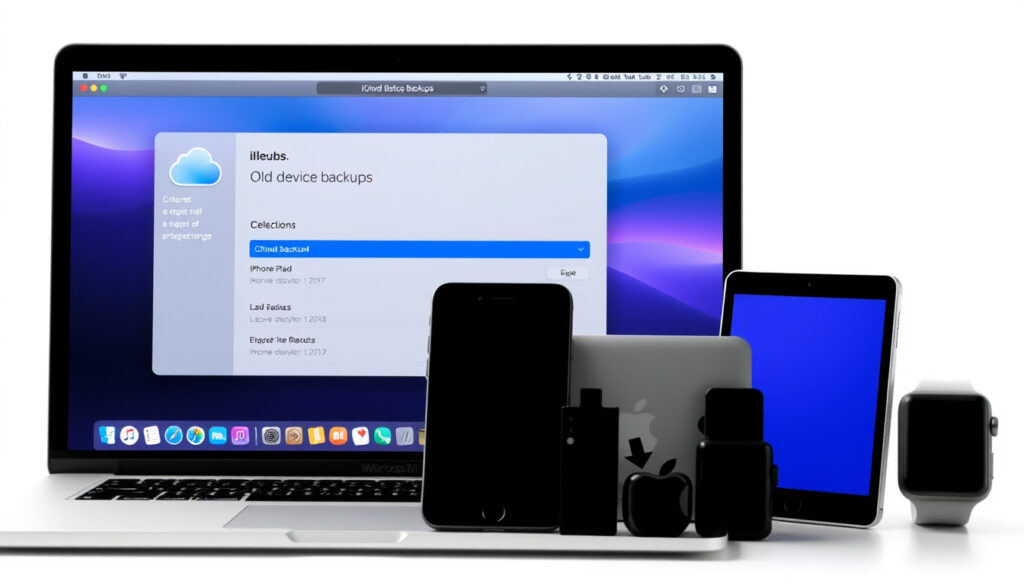
How to Delete Old Backups on iCloud – Step-by-Step Guide for All Devices
iCloud automatically saves backups of your iPhone, iPad, Mac, and other connected devices. Over time, these backups accumulate and consume your available storage. Deleting old backups you no longer need is a straightforward process, but it helps to understand the difference between removing a backup and losing actual device data.
Whether you are using iOS 16, macOS, or Windows, the steps to manage and remove outdated iCloud backups follow a consistent pattern. This guide walks through the process for each platform, clarifies what happens when you delete a backup, and explains how to check your storage usage before making changes.
Quick-Start: Delete iCloud Backups Across Devices
Settings → [Your Name] → iCloud → Manage Account Storage → Backups → Select Device → Delete
System Settings → Apple ID → iCloud → Manage → Backups → Select Device → Delete
iCloud for Windows app → Storage → Backups → Select Device → Delete
Deleting a backup removes only that saved copy from iCloud—your actual device data stays untouched.
- iCloud provides 5GB of free storage, and device backups are among the first things to fill that space.
- Old backups from devices you no longer use are the easiest candidates for removal.
- Once you delete a backup, it cannot be recovered—Apple does not retain deleted backups.
- Re-enabling iCloud Backup after deletion starts a fresh backup cycle automatically.
- Backups tied to one Apple ID cannot be managed from another account.
- Selective app backup options can reduce future backup sizes significantly.
- Apple recommends checking storage usage before and after making changes, according to official support documentation.
| Fact | Details |
|---|---|
| Free iCloud Storage | 5GB per Apple ID |
| Backup Location (iOS) | Settings → [Your Name] → iCloud → Manage Account Storage → Backups |
| Backup Location (Mac) | System Settings → Apple ID → iCloud → Manage → Backups |
| Auto-Backup Trigger | Daily, when device is on Wi-Fi and connected to power |
| Deletion Impact on Device | None—device data remains completely intact |
| Recovery After Deletion | Not possible—Apple does not store deleted backups |
How to Delete iCloud Backups on iPhone or iPad
On an iPhone or iPad running iOS 16 or iPadOS 16 and later, the process starts in the Settings app. The path may differ slightly on older iOS 15 devices, but the overall flow remains the same.
Steps for iOS 16 and Later
Open Settings and tap your name at the top of the screen. From there, select iCloud, then tap Manage Account Storage. Choose Backups from the list of storage categories. You will see a list of every device that has ever backed up to your iCloud account.
Tap on the device backup you want to remove. On the next screen, select Delete Backup or Turn Off & Delete, then confirm your choice by tapping Turn Off and Delete. The backup is removed immediately and cannot be retrieved afterward.
Steps for iOS 15 and Earlier
On devices running iOS 15 or earlier, the path is slightly different. Go to Settings → [Your Name] → iCloud → Manage Account Storage → Backups. From that point, the selection and deletion process mirrors iOS 16 and later versions.
After deletion, iCloud Backup turns off automatically for that device. If you want automatic backups to continue, go back to Settings → [Your Name] → iCloud → iCloud Backup and toggle it back on.
How to Delete iCloud Backups Using a Mac or PC
Both Mac and Windows users can manage iCloud backups through their respective interfaces. Apple provides dedicated tools for Windows, while Mac users rely on the operating system’s built-in settings.
Deleting Backups on a Mac
On a Mac, open System Settings (or System Preferences on older macOS versions). Click Apple ID, then select iCloud. Click the Manage button next to your storage details, and then choose Backups from the sidebar. Select the device you want to remove, click Delete, and confirm the action.
Deleting Backups on Windows
Windows users need to download the iCloud for Windows application from Apple if it is not already installed. Sign in with your Apple ID, click Storage, then select Backups. Choose the device backup you wish to delete, click Delete, and confirm when prompted.
iCloud.com cannot be used to manage device backups. Apple’s web interface does not provide access to this feature. All backup management must be done through the Settings app on iOS devices, System Settings on Mac, or the iCloud for Windows application on PC.
Is It Safe to Delete Old iCloud Backups?
Yes, deleting an old iCloud backup is safe. The deletion removes only the saved copy stored in iCloud—it does not affect the data currently on your device. Your photos, contacts, messages, app data, and settings remain exactly where they are.
What Happens to Your Device Data
When you delete an iCloud backup, you are removing a snapshot of what your device looked like at a specific point in time. That snapshot is no longer needed once you have a newer backup or prefer to rely on other storage methods. Your device continues operating normally regardless of whether a backup exists in iCloud.
When to Keep a Backup
Retain backups for devices you actively use, especially if you rely on iCloud as your primary recovery method. Backups from devices you have sold, lost, or replaced are generally safe to delete. If you are unsure, check whether the backup size is significant enough to warrant keeping it.
Deleting an iCloud backup is permanent. Apple does not maintain a recovery window for deleted backups. Before proceeding, confirm that you have a current backup stored elsewhere—such as on your Mac via Finder or on a Windows PC via iTunes—or that you are comfortable relying on your device’s current data alone.
How to Check and Manage iCloud Backup Storage
Understanding how much space your backups consume helps you decide which ones to remove. iCloud provides a clear view of storage usage across all categories, including backups.
Viewing Backup Sizes on iPhone
On your iPhone or iPad, go to Settings → [Your Name] → iCloud → Manage Account Storage. Tap Backups to see a list of devices and the amount of storage each backup uses. The sizes reflect photos, settings, app data, and other content included in that backup.
Reducing Backup Size
Backups can grow large when they include every app and all photo libraries. To reduce backup size without deleting the backup entirely, disable backup for specific apps you do not need to restore. Go to Settings → [Your Name] → iCloud → iCloud Backup → Options and toggle off any apps whose data you do not need saved.
Photos present a special consideration. If you use iCloud Photos, your images sync separately and do not need to be included in device backups. Disabling iCloud Photos backup in your backup settings can free substantial space.
For those considering an upgrade, Best Buy Credit Card Review may offer financing options for extended iCloud+ plans if you need more than 200GB of storage.
What Happens After Deleting an iCloud Backup
Once you confirm deletion, the backup is erased from iCloud immediately. The freed space updates your storage bar within seconds, and you can verify the change in Manage Account Storage.
On iPhone and iPad, automatic backups stop for that device until you manually re-enable the feature. If you re-enable iCloud Backup later, the service begins creating a fresh backup on its next overnight cycle, assuming your device meets the conditions of being on Wi-Fi and connected to power.
Device data remains untouched throughout this process. The backup was simply a copy stored remotely. Removing it does not alter what lives on your device.
Understanding the Difference: Backup vs. Device Data
iCloud backups and the data on your device are separate things. A backup is a record of your device’s state at a specific moment, stored remotely on Apple’s servers. Your device data is what you interact with every day—the photos you take, the messages you send, the apps you open.
Deleting a backup is analogous to shredding a printed copy of a document. The original still exists on your device. The copy in iCloud is gone, but nothing on the device changes. This distinction is important because confusion between the two leads many users to worry unnecessarily about data loss.
Sources and Official Guidance
Apple’s official support documentation outlines the backup management process for iOS, macOS, and Windows. Key resources include guides on how iCloud backup works, storage management, and iCloud for Windows setup. These documents provide authoritative steps for managing backups across all supported platforms.
“Backups that are no longer needed can be deleted to free up iCloud storage,”
Apple’s guidance emphasizes checking your current storage usage before deleting anything, ensuring you understand which device each backup belongs to, and recognizing that deletion cannot be undone.
Summary
Deleting old iCloud backups frees up storage space without affecting the data on your device. The process varies slightly between iPhone, iPad, Mac, and Windows, but all paths lead to the same outcome: permanent removal of the selected backup. Always verify that you have a current backup elsewhere or that you are comfortable proceeding without one, since Apple does not retain deleted backups. Managing backups regularly keeps your iCloud storage organized and ensures you are not paying for space occupied by outdated copies.
For more context on Apple device releases and timelines, see the iPhone 13 Release Date overview.
Will deleting an iCloud backup delete my photos?
No. Deleting a backup removes only the saved copy stored in iCloud. Your photos, messages, contacts, and other data on your device remain intact.
Can I recover a deleted iCloud backup?
No. Apple does not retain deleted backups. Once you confirm deletion, the backup is permanently erased with no recovery option available.
How do I delete backups from an old iPhone I no longer have?
Sign into iCloud on any device using your Apple ID, go to Manage Account Storage → Backups, select the old device, and delete the backup. The backup remains in iCloud even if the physical device is gone.
Does deleting a backup turn off automatic backups?
On iPhone and iPad, yes. After deleting a backup, iCloud Backup turns off automatically for that device. You can re-enable it manually in Settings if needed.
How often does iCloud back up my device?
iCloud creates automatic backups daily, but only when your device is connected to Wi-Fi, plugged into power, and locked. Any interruption in these conditions delays the backup.
Can I delete multiple backups at once?
You delete backups one device at a time. There is no batch deletion option in iCloud settings. Work through each device individually to remove all unwanted backups.
Does iCloud for Windows support backup deletion?
Yes. The iCloud for Windows application includes a Storage section where you can view and delete backups for connected devices.
How much storage does an iCloud backup use?
Backup sizes vary based on device content, including photos, videos, app data, and settings. You can check the exact size for each backup in Manage Account Storage under the Backups section.
More related posts
 Bonnie Blue World Record Video: Facts and Claims Explained
 Proverbs 27:9 Explained: Friendship, Advice & Bible Verses
 Distance Between Two Points: Great Circle Formula Explained
 2025 Calendar with Holidays – US and Ireland Guide
 Blow the Man Down: Shanty Meaning and 2019 Film Review
 Quick, Draw! Guide: The AI Game and Dataset Explained
 Netflix Has Canceled a Popular Series After Three Seasons – Pattern and Reasons
 NBA Mock Draft 2026: Simulator, Projections & Lottery Odds
