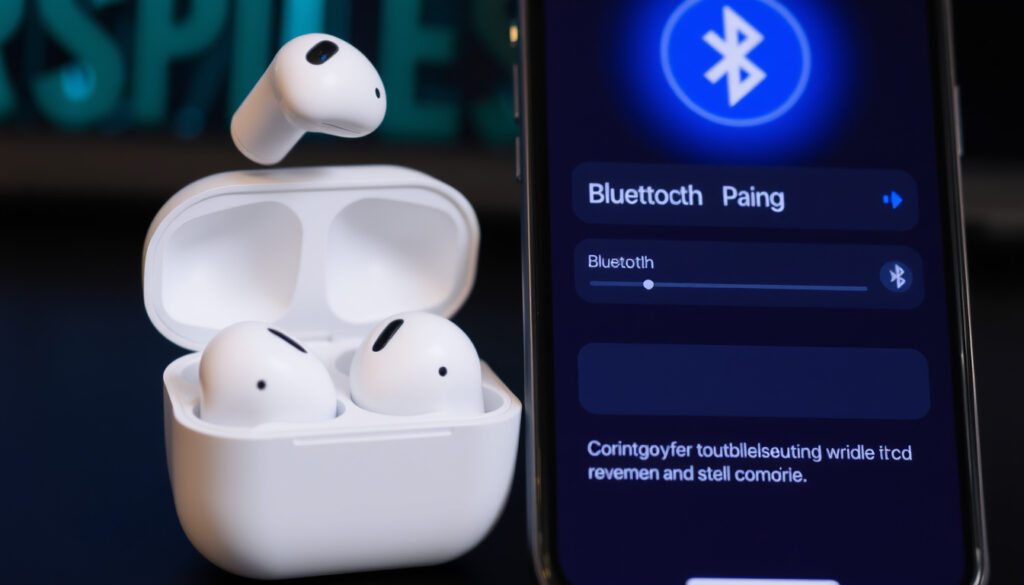
How to Connect AirPods: Pairing and Troubleshooting Guide
Few things are as satisfying as opening your AirPods case and watching that seamless pairing animation pop up on your iPhone. But when the animation doesn’t appear — or when you’re trying to connect to an Android phone or a laptop — the process can feel surprisingly opaque. This guide walks you through every step, from first-time pairing to fixing stubborn connection issues.
AirPods models supported: 6 (1st gen, 2nd gen, 3rd gen, Pro, Pro 2, Max) ·
Bluetooth version: 5.0 (most models) ·
Battery life (talk time): 5 hours per charge ·
Range: 30 feet (10 meters) ·
Time to enter pairing mode: less than 1 second
Quick snapshot
- AirPods use Bluetooth 5.0 with H1/H2 chip (Apple Support guide)
- Pairing range is up to 30 feet (10 meters) (Apple Support reference)
- Resetting requires holding the setup button for 15 seconds (Apple Support reset instructions)
- 6 AirPods models: 1st, 2nd, 3rd gen, Pro, Pro 2, Max (Apple Support guide)
- Exact cause of one-side audio issues varies between devices
- Some third-party devices may have compatibility quirks not documented by Apple
- Pairing mode activates in less than 1 second after pressing the setup button (Apple Support pairing details)
- Status light switches from white to amber after 15-second hold during reset (Apple Support pairing details)
- After reset, re-pair with each device individually
- Newer models (AirPods 4, Pro 3) use front double-tap instead of rear button
Five key specs define how AirPods behave during pairing:
| Specification | Value | Source |
|---|---|---|
| First public release | 2016 | Apple Support documentation |
| Bluetooth version | 5.0 (most models) | Apple Support guide |
| Chip | H1 / H2 | Apple Support reference |
| Battery life (listening) | 5 hours per charge | Apple Support documentation |
| Range | 30 feet (10 meters) | Apple Support guide |
The implication: These consistent hardware specs mean pairing behavior is largely predictable across models, with button placement being the main variable.
How do I get AirPods to connect?
If you own an iPhone, the pairing process is nearly automatic. For Android and other devices, you’ll need to use the physical button on the case — and the trick is knowing exactly how long to hold it.
How do I connect AirPods to iPhone?
To pair with an iPhone, open the AirPods case near the iPhone with Bluetooth enabled. A setup animation should appear on screen. Tap Connect and follow the prompts (Apple Support pairing guide). If you don’t see the animation, go to Settings > Bluetooth and select your AirPods from the list (Apple Support instructions).
The pattern: Apple’s automatic setup animation is the fastest method, but the manual Bluetooth menu backup works identically.
How do I connect AirPods to Android?
On Android, turn on Bluetooth, then tap Pair new device. Open the AirPods case and press and hold the setup button on the back until the status light flashes white. Your AirPods should appear under Available devices (Google Help Android pairing guide). If they don’t show up, check More or Refresh in the Bluetooth screen (Google Help troubleshooting).
How do I connect AirPods to a laptop?
On a Mac, open System Settings > Bluetooth and put your AirPods in pairing mode (press and hold the setup button until the light flashes white). Select them from the list (Apple Support instructions). For Windows, enable Bluetooth, open the case in pairing mode, and choose AirPods from the Bluetooth devices list. The process is similar to Android pairing.
How do I connect AirPods to a Samsung device?
Samsung Galaxy phones run Android, so follow the Android instructions: open case, hold the rear button, and select AirPods from Bluetooth settings (Google Help guide). The pairing button on the case works identically regardless of the phone brand.
Why are my AirPods not connecting?
Most connection failures boil down to four causes: Bluetooth off, low battery, already-connected to another device, or a stuck pairing mode. Fortunately each has a simple fix.
Why are my AirPods not pairing?
First, confirm Bluetooth is enabled on your device. If it’s on, check that your AirPods are charged — place them in the case and look for the status light. If the light doesn’t glow green or amber, charge them for at least 15 minutes (Apple Support troubleshooting guide). Also ensure they aren’t already connected to another device. If they are, disconnect from that device first.
Do AirPods have a pairing button?
Yes — all standard AirPods (1st, 2nd, 3rd gen, Pro, Pro 2) have a setup button on the back of the charging case. Press and hold it for about 5 seconds until the status light flashes white to enter pairing mode (Apple Support pairing instructions). For AirPods 4 and Pro 3, the pairing trigger is a double-tap on the front of the case (Apple Support reference). For AirPods Max, press and hold the noise control button on the right ear cup (Apple Support guide).
How do I get both AirPods to connect?
If only one AirPod is connecting, open the case, close the lid for 15 seconds, then open it again near your device. If that doesn’t work, reset the AirPods (hold the button for 15 seconds until the light flashes amber then white) and re-pair (Apple Support reset instructions). Also check your audio balance settings — on iPhone, go to Settings > Accessibility > Audio/Visual > Balance and make sure it’s centered.
How do I make my AirPods discoverable again?
How to put AirPods Pro 3 in pairing mode
Place AirPods Pro 3 in the charging case, close the lid, then open it. Double-tap the front of the case. The status light will flash white, indicating pairing mode is active (Apple Support pairing instructions).
How to put AirPods Max in pairing mode
Remove AirPods Max from the Smart Case. Press and hold the noise control button on top of the right ear cup for about 5 seconds until the status light flashes white (Apple Support guide).
What this means: The newer models have moved away from the rear button to a tap-based system. If you own AirPods Pro 3 or AirPods 4, forget the back of the case — the front is where the magic happens.
How do I force my AirPods to pair?
A forced reset erases all pairing data — but it’s the nuclear option that works when nothing else does. Only use it after trying the basic steps.
How to forcefully reset AirPods
Place both AirPods in the charging case and close the lid. Wait 30 seconds, then open the lid. Press and hold the setup button on the back of the case for 15 seconds. The status light will flash amber, then white. Release the button. Your AirPods are now reset and ready to pair as new (Apple Support reset guide).
How to reset AirPods Pro 3
For AirPods Pro 3, the reset procedure is the same but uses the double-tap on the front of the case. Place the AirPods in the case, close the lid, open it, then double-tap the front and hold (the equivalent of the 15-second button hold) until the light flashes amber then white (Apple Support reset instructions).
Why are my AirPods not showing up in Bluetooth?
If AirPods don’t appear in the Bluetooth device list, they may not be in pairing mode. Repeat the pairing-mode activation steps (button hold or double-tap) and check that the status light is flashing white. If they still don’t show up, restart your device and try again. If the problem persists, contact Apple Support for further assistance.
The trade-off: A reset clears all remembered devices, so you’ll need to re-pair with every device afterward. Keep a list of your devices handy before you reset.
Why are my AirPods only on one side?
What to do when sound is only coming out of one AirPod
Start by checking the audio balance on your device. On iPhone, go to Settings > Accessibility > Audio/Visual and ensure the Balance slider is centered. On Android, look for Accessibility > Audio balance. If balance is correct, clean the speaker mesh of the affected AirPod with a dry, soft-bristled brush (Apple Support cleaning tips).
How to fix one AirPod not working
If cleaning doesn’t help, reset the AirPods as described above. Also check for firmware updates: connect the AirPods to an iPhone, go to Settings > Bluetooth, tap the “i” next to your AirPods, and scroll to Firmware Version. If an update is available, it installs automatically when the AirPods are charging and connected to Wi-Fi (Apple Support firmware details).
Why this matters: One-side audio is frustrating but usually fixable without replacing the AirPod. Balance settings and mesh blockages account for the majority of cases.
Confirmed facts
- AirPods connect via Bluetooth 5.0 (H1/H2 chip)
- Resetting requires holding button for 15 seconds
- Pairing mode is indicated by a flashing white status light
- AirPods 4 and Pro 3 use front double-tap not rear button
- AirPods Max use noise control button for pairing
What’s unclear
- Exact root cause of one-side audio varies per device
- Some third-party Bluetooth adapters may have compatibility issues
- Firmware update triggers can be unpredictable
“If you don’t see the setup animation, you can pair manually by pressing and holding the setup button until the device flashes a white light.”
— Apple Support (official AirPods pairing guide)
“On your AirPods case, press and hold the button until the device flashes a white light.”
— Google Help (Android Bluetooth pairing guide)
For anyone relying on AirPods daily, understanding the reset sequence is the difference between a quick fix and a frustrating hour of trial and error. If you’ve used up all the troubleshooting steps and still can’t connect, the reset is your ace — and it’s backed by Apple’s own recovery procedure.
Frequently asked questions
Can I connect AirPods to multiple devices at once?
AirPods can be paired with multiple devices but can only actively connect to one at a time. Switching between devices usually requires manually selecting AirPods in the Bluetooth menu of the new device.
How do I check AirPods battery level?
On iPhone, open the case near the phone to see the battery pop-up. On Android, you can use third-party apps like MaterialPods or check the battery status in the Bluetooth device info screen.
Do AirPods work with non-Apple devices?
Yes, AirPods function as standard Bluetooth headphones with any device that supports Bluetooth, including Android phones, Windows laptops, and smart TVs. However, some features like Siri or spatial audio may not be available on non-Apple devices.
How to update AirPods firmware?
Firmware updates happen automatically when AirPods are connected to an iPhone, charging, and within Bluetooth range of a Wi-Fi-connected device. There’s no manual update button.
What to do if AirPods keep disconnecting?
First, ensure Bluetooth interference is minimized — move away from other wireless devices. Reset the AirPods, restart the source device, and check for firmware updates. If disconnects persist, contact Apple Support.
How to clean AirPods for better connection?
Use a dry, soft-bristled brush to gently clean the speaker mesh and charging contacts. Avoid liquids. Blocked mesh is a common cause of reduced volume and one-side audio issues.
Related reading: How to Pair Apple Watch to a New Phone: Step by Step Guide · How to Delete Old Backups on iCloud – Step-by-Step Guide for All Devices
More related posts
 Mamie Van Doren 2024: New Music, Book, TikTok at 93
 Netflix Has Canceled a Popular Series After Three Seasons – Pattern and Reasons
 How Long Do Dogs Live? Average Lifespan, Breed Facts & Human Years
 7/8 as a Decimal: Complete Guide with Long Division Steps
 Atlanta Dream vs Indiana Fever Player Stats: Clark & Reese
 Exhaust Shop Near Me: Costs, DIY Repairs, and Top Dublin Shops
 Pixar Movies in Order: Complete List (1995–2026)
 Best Guiso de Lentejas Near Me
